Remove BG Video logo
Remove BG Video
  • Pricing
Remove BG Video
Remove BG VideoRemove BG VideoRemove BG Video

Remove video backgrounds online

[email protected]

Tools

  • View all tools
  • Video Background Remover
  • AI Video Blur
  • Blur Face in Video
  • Blur Part of Video
  • Blur Video Background
  • Pixelate Video
  • Censor Video

Support

  • Guides
  • About Us
  • Pricing
  • Contact

© 2026 Remove BG Video. All rights reserved.

Privacy Policy
•Terms of Service
•Cookie Policy
  1. Home
  2. Tools
  3. Censor Video

Censor Video Automatically with AI Tracking

Upload a clip, pick a moving face, license plate, screen, or label, and censor video online with automatic tracking. Preview the result before you download.

Blur, pixelate, mosaic, or blackout5-second preview to test trackingSee the credit cost before you start
Censor workspaceOriginal and censored preview
OriginalCensored
Drop a video here or choose a fileMP4, MOV, or WebM · Up to 100 MB and 10 minutes
01
What should be censored?Choose a common privacy target or describe one moving object.
02
Choose the censor effectSwitch effects after tracking without uploading the video again.

Blackout replaces the tracked area with a solid privacy cover.

Cost before you start0 credits for this video

Only the selected clip is uploaded and charged. Free accounts get one 5-second preview. If a paid job fails, the reserved credits are returned.

What Is a Video Censor Tool?

A video censor tool tracks a visible face, plate, screen, label, or described object and covers it with blur, pixelation, mosaic, or a solid blackout as it moves through the clip.

Use it to protect identities in interviews and school media, redact customer or account details in support videos, hide labels in product footage, or block sensitive areas before a clip is shared. Choose the target and effect, process the selected range, then watch the result to confirm the cover stays in place.

Censor Video changes the visible picture only. It does not mute or bleep speech, remove an existing censor effect, or reconstruct information that was already hidden.
Start with what must not be visible

Auto-Censor Video Faces, Plates, Screens, and Moving Objects

Pick a common privacy target or describe one object, then choose the censor style that fits the footage.

Censor a Moving Face

Keep a face covered as the person talks and turns, while the rest of the scene stays clear.

Censor One Specific Person

Describe one person to cover only them, not every face in the frame.

Censor Screen Data

Hide account details, customer records, dashboards, and unreleased features in recorded tutorials.

Black Out One Moving Object

Describe a badge, document, label, or person, and a solid cover stays on that target through the clip.

Built for moving footage

Automatic Censor Tracking for Moving Details

Choose the target once, check how it is tracked, and change the censor effect without running the tracking again.

Track Faces as People Move

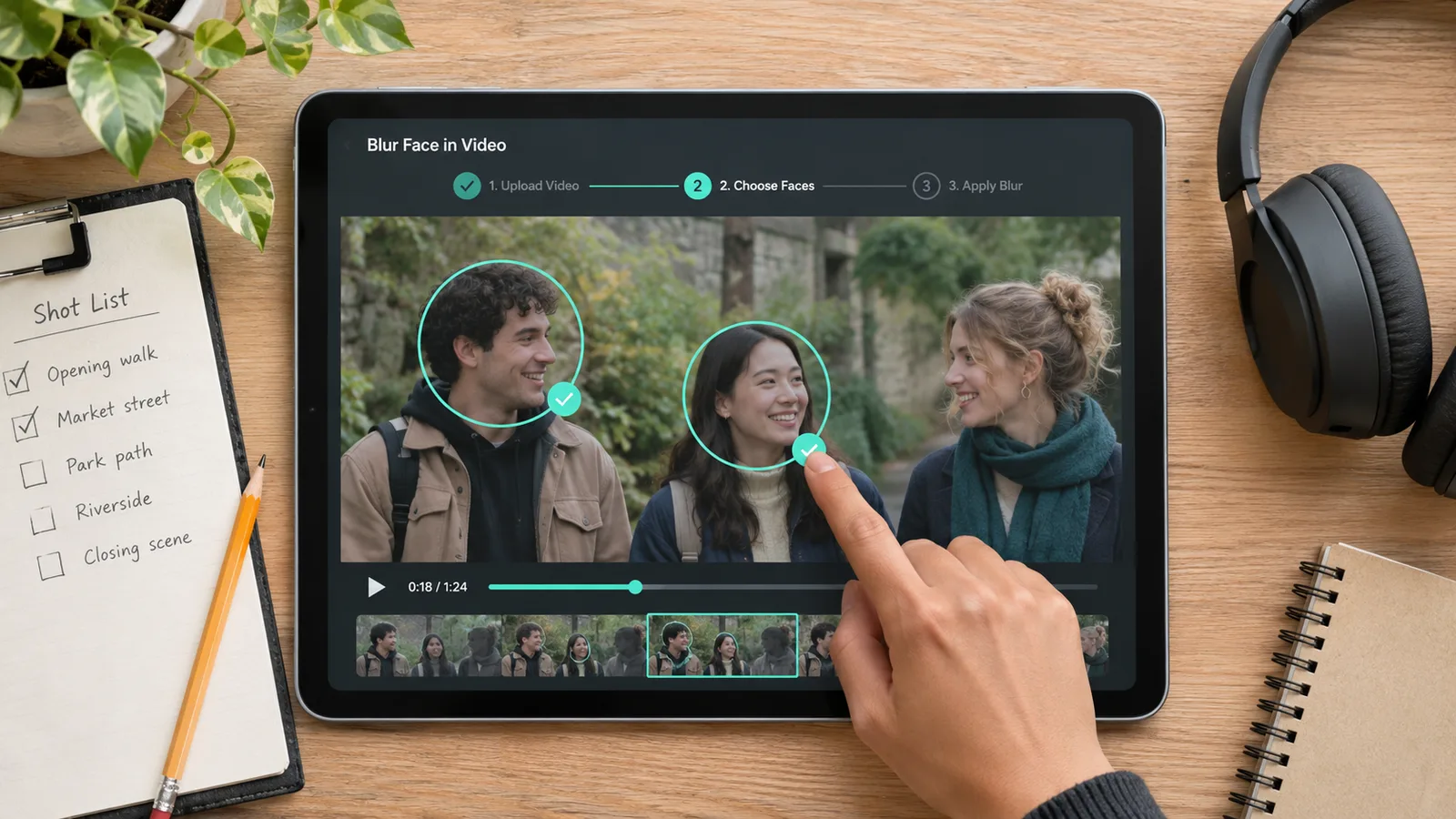
Keep visible faces covered as people turn, walk across the frame, or move through interviews and public footage.

Keep License Plates Unreadable

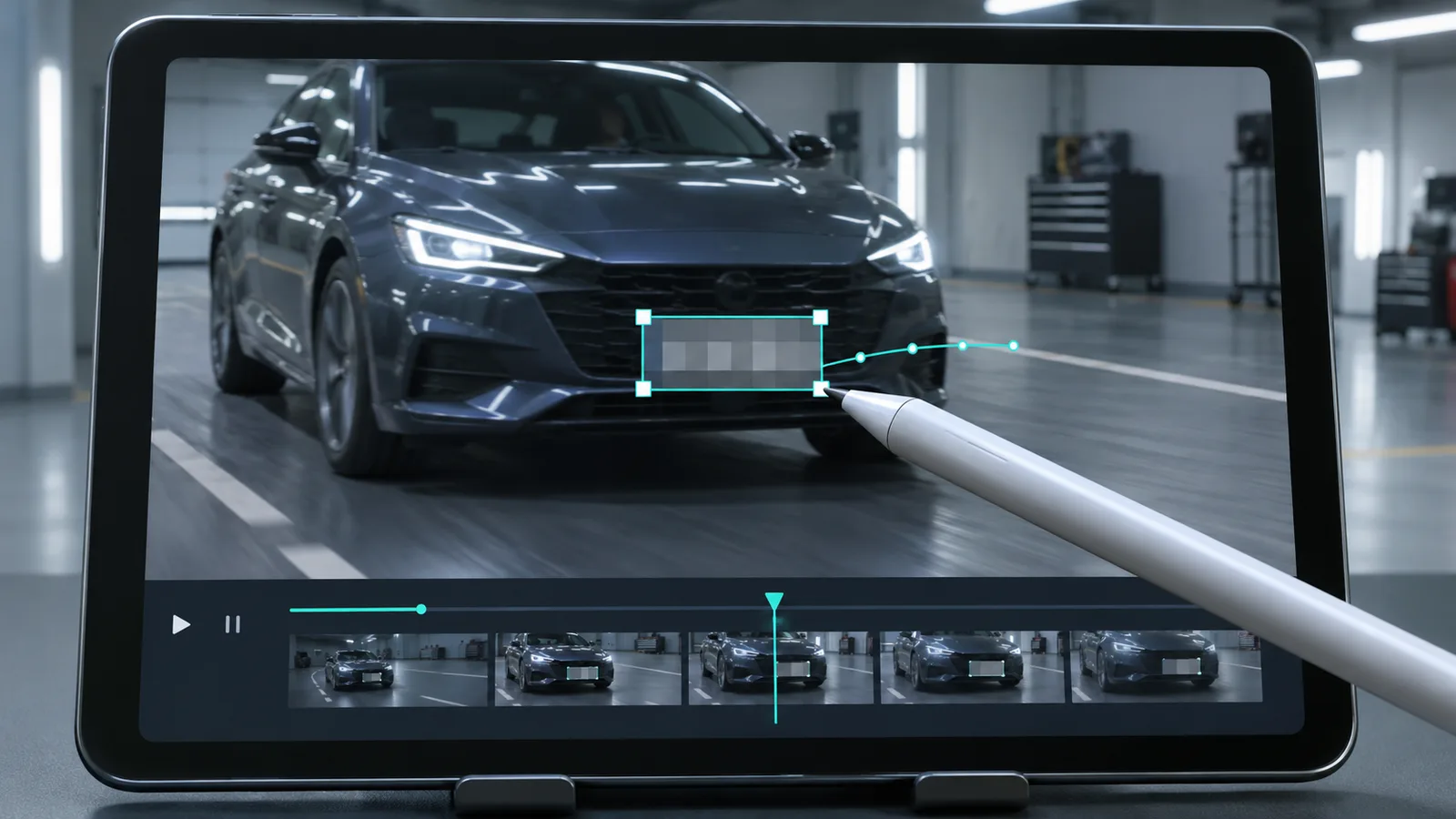
Follow a visible plate as the vehicle moves, instead of drawing a new censor box on every frame.

Cover Screens, Labels, and Documents

Protect dashboards, names, addresses, customer data, packaging, and other readable information.

Describe One Specific Target

Use a short prompt such as “person in the green jacket” when a preset would cover too much.

Compare Four Censor Styles

Switch between Blur, Pixelate, Mosaic, and Blackout after tracking, then choose the clearest privacy treatment.

Review Before You Export

Play the processed clip and check head turns, objects passing in front of the target, and moments when it leaves and re-enters the frame before you download.

Made for people who publish video

A Video Censor Tool for Interviews, Schools, and Client Work

Prepare footage for public release without exposing people, identifiers, or confidential screen content.
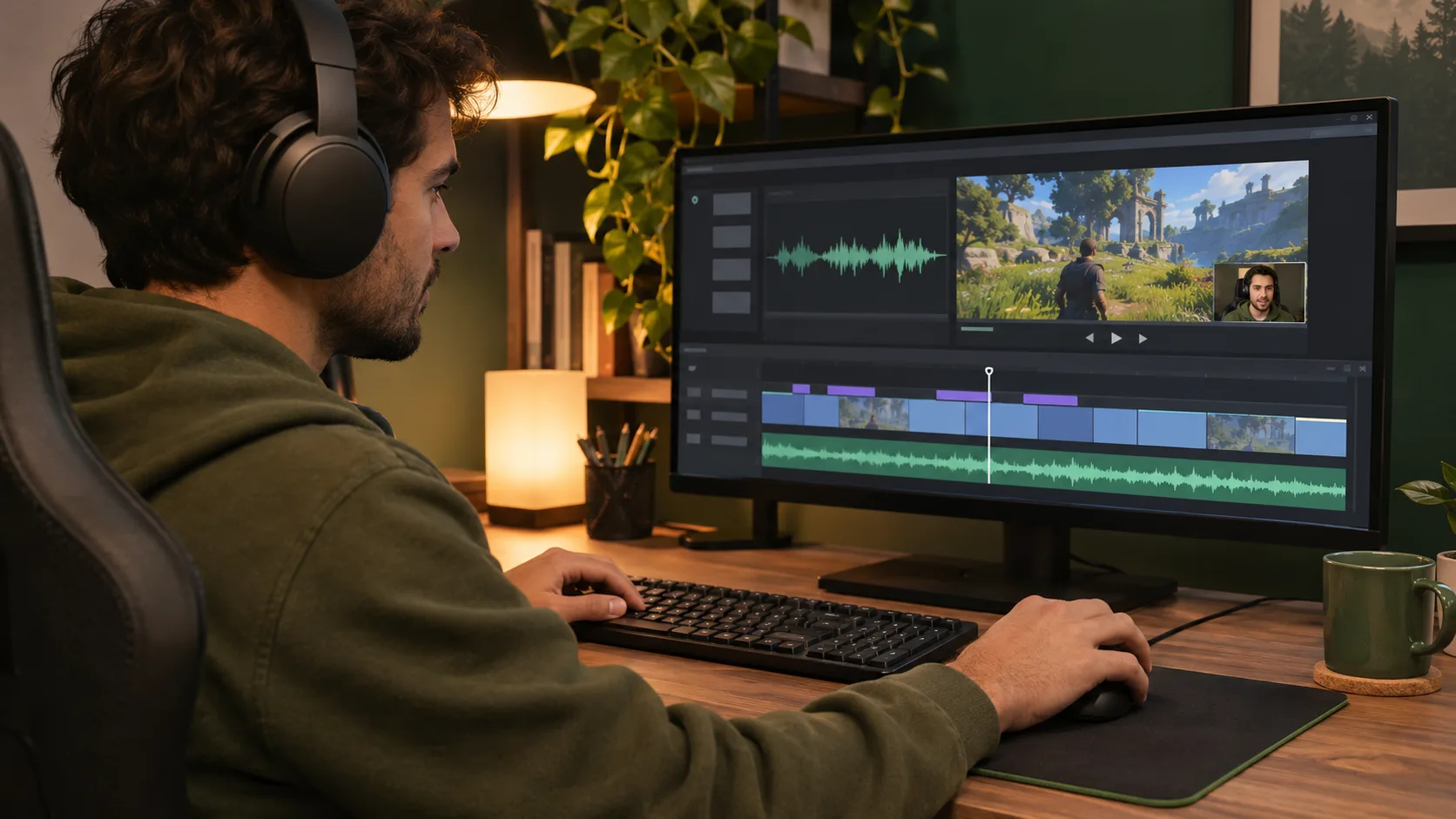
Gaming creator using Censor Video to hide private details in recorded commentary footage

Gaming and YouTube Creators

Cover webcam details, usernames, notifications, or bystanders before a clip goes on a public channel.
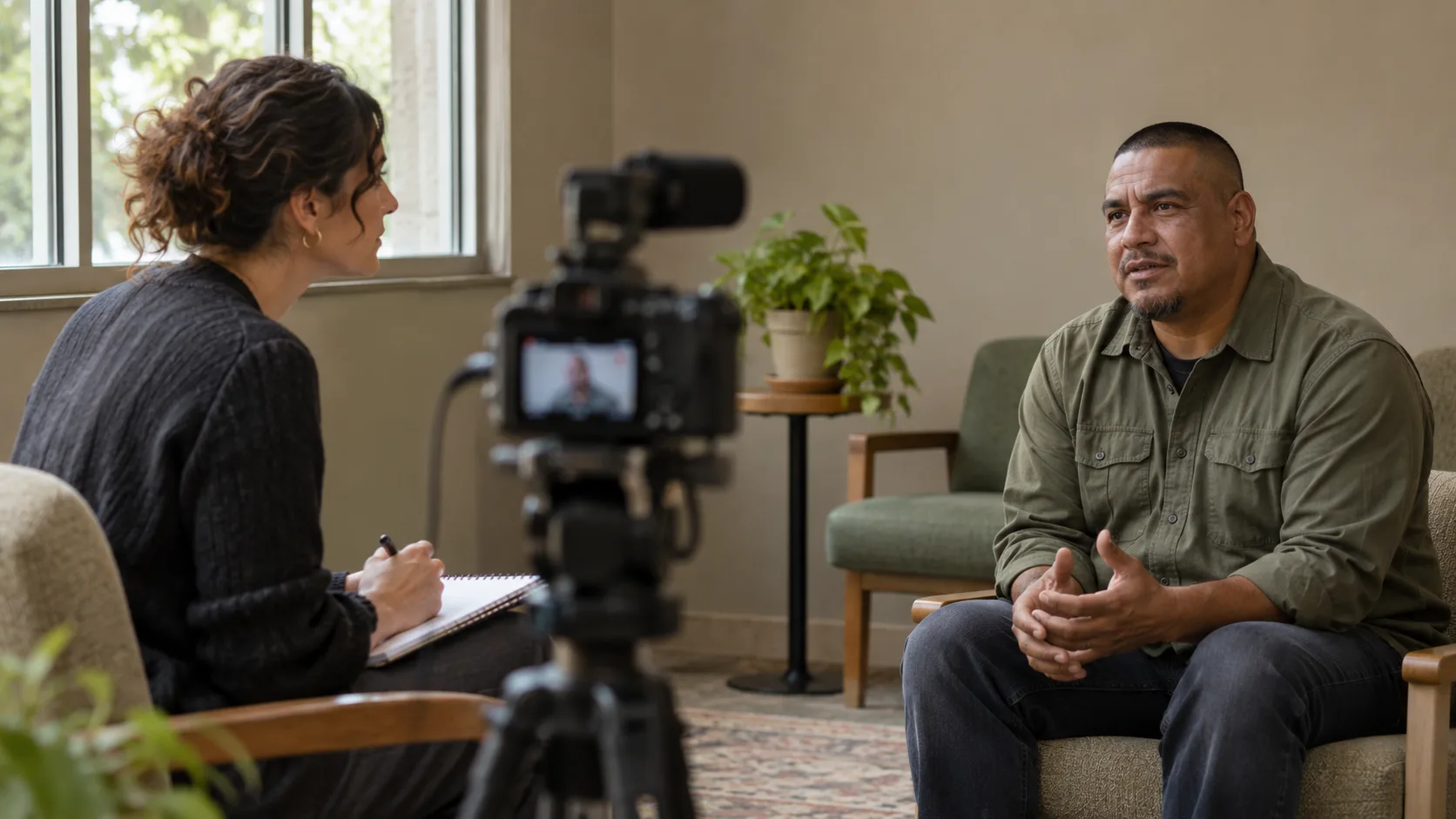
Documentary team using Censor Video to protect an interviewee's identity

Journalists and Documentary Teams

Protect sources and bystanders while keeping the interview and its surroundings clear enough to follow.
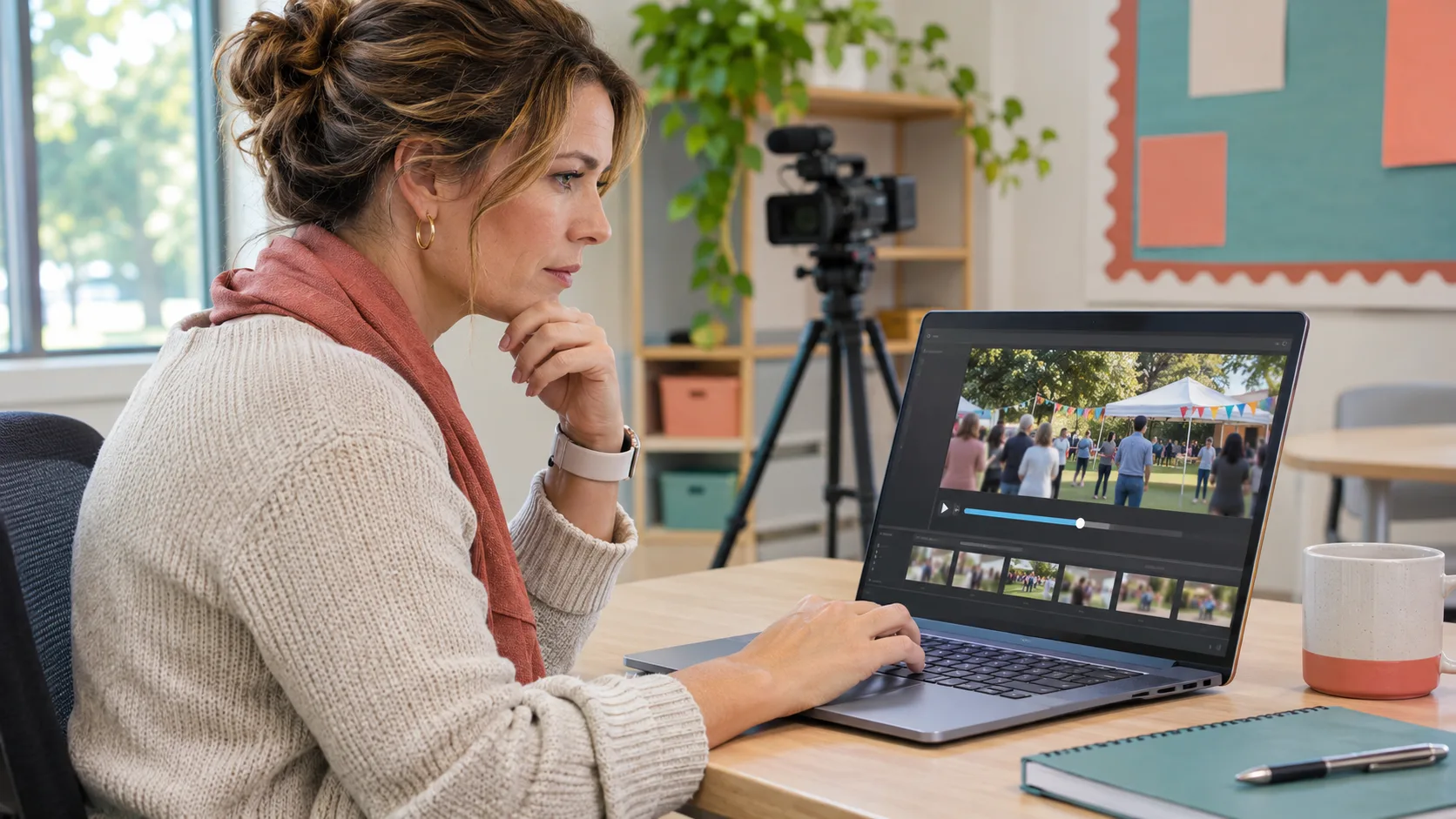
School media coordinator using Censor Video to hide faces in community event footage

Schools and Community Organizations

Cover faces and other details that should not appear in event and outreach footage before it goes public.
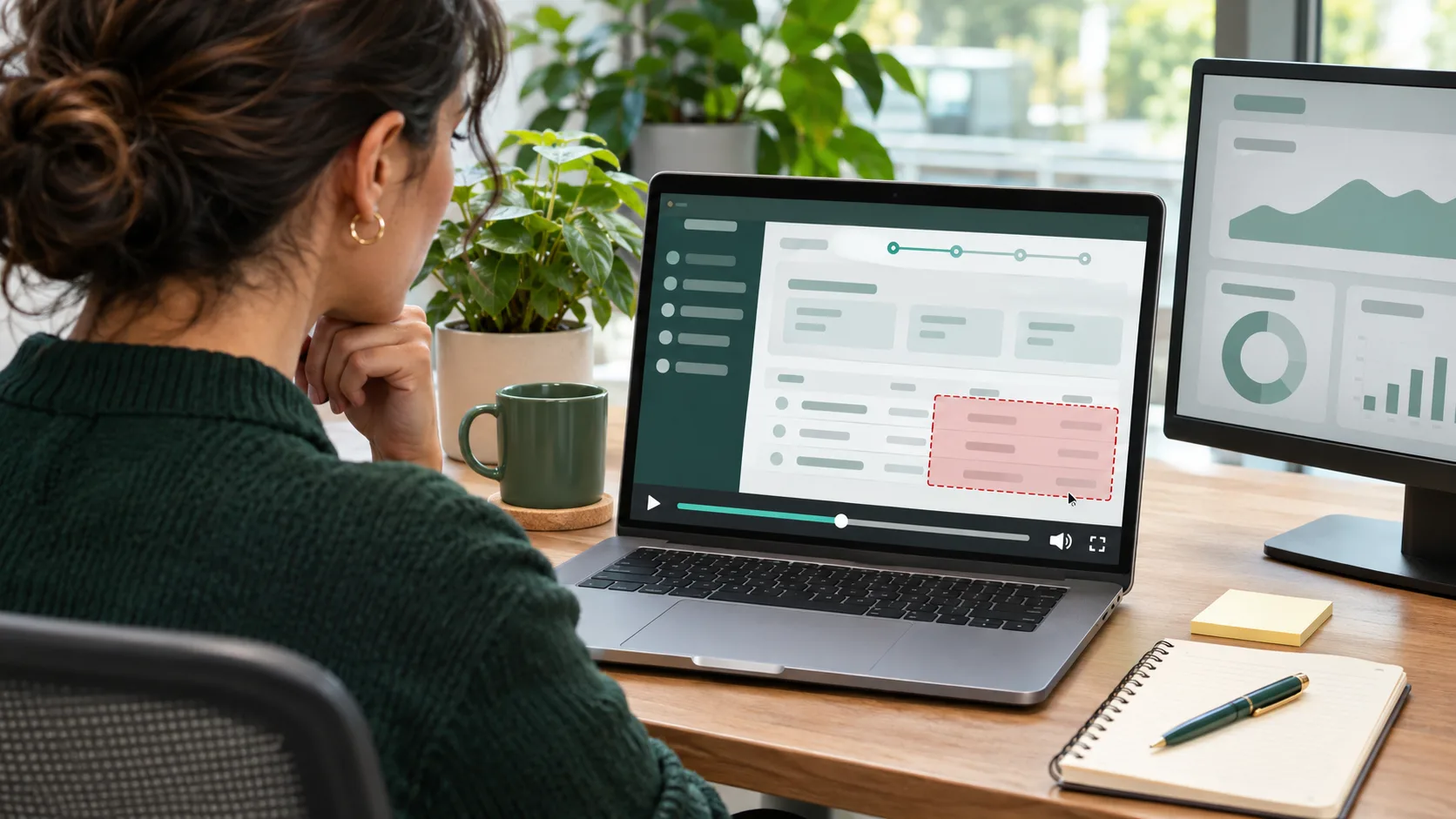
Support specialist using Censor Video to hide dashboard data in a tutorial

Product, Support, and Agency Teams

Hide customer data, internal dashboards, addresses, badges, and unreleased features before you send a video to a client.

Three clear steps

How to Censor a Video Online

Upload a clip, choose the private detail, then review the tracked censor effect before you export.
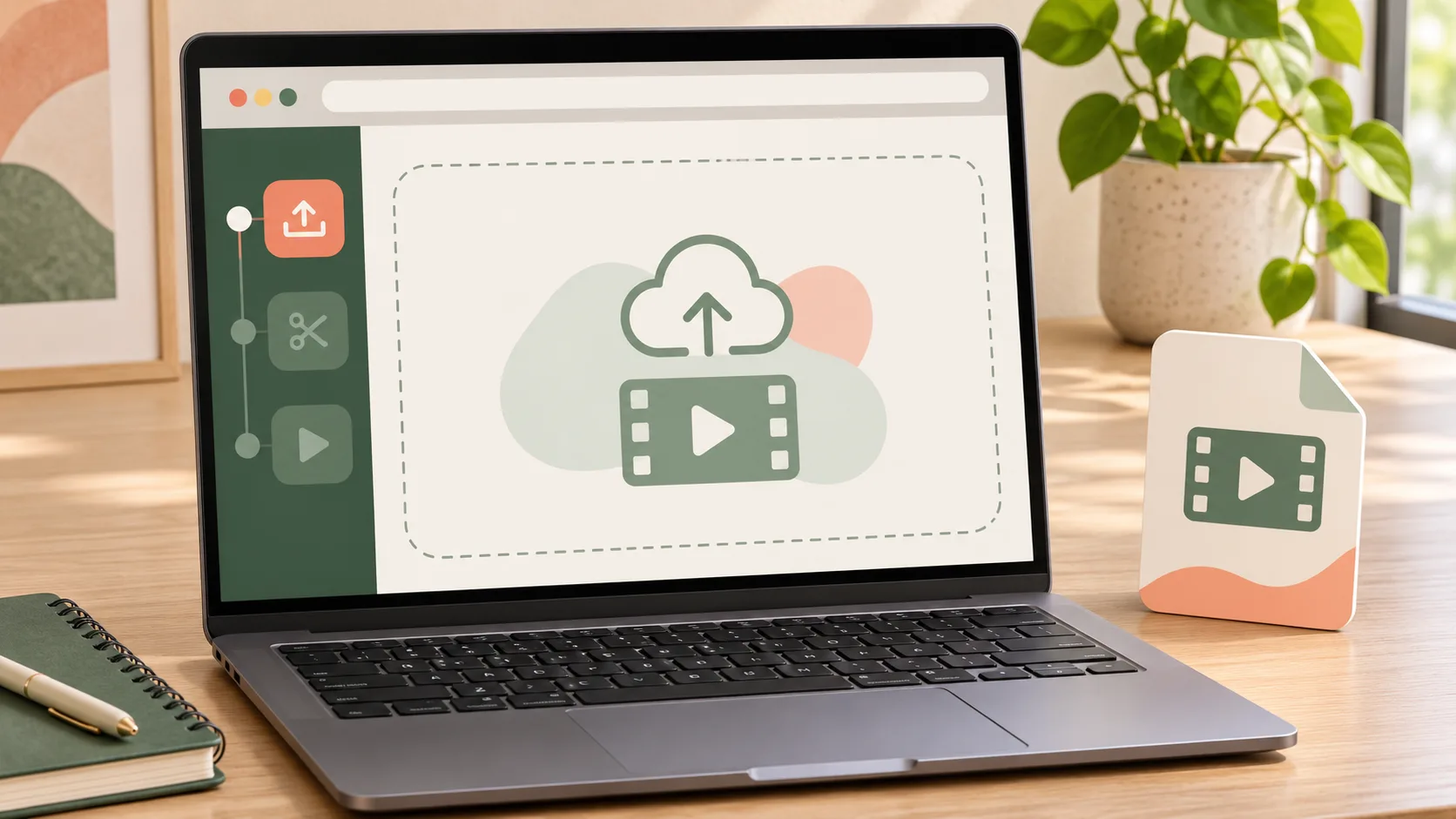
  1. Upload a video to the Censor Video tool by Remove BG Video
    1

    Upload the Video You Need to Censor

    Select an MP4, MOV, or WebM up to 100 MB and 10 minutes. Then use the 5-second preview, or set an exact clip range with credits.
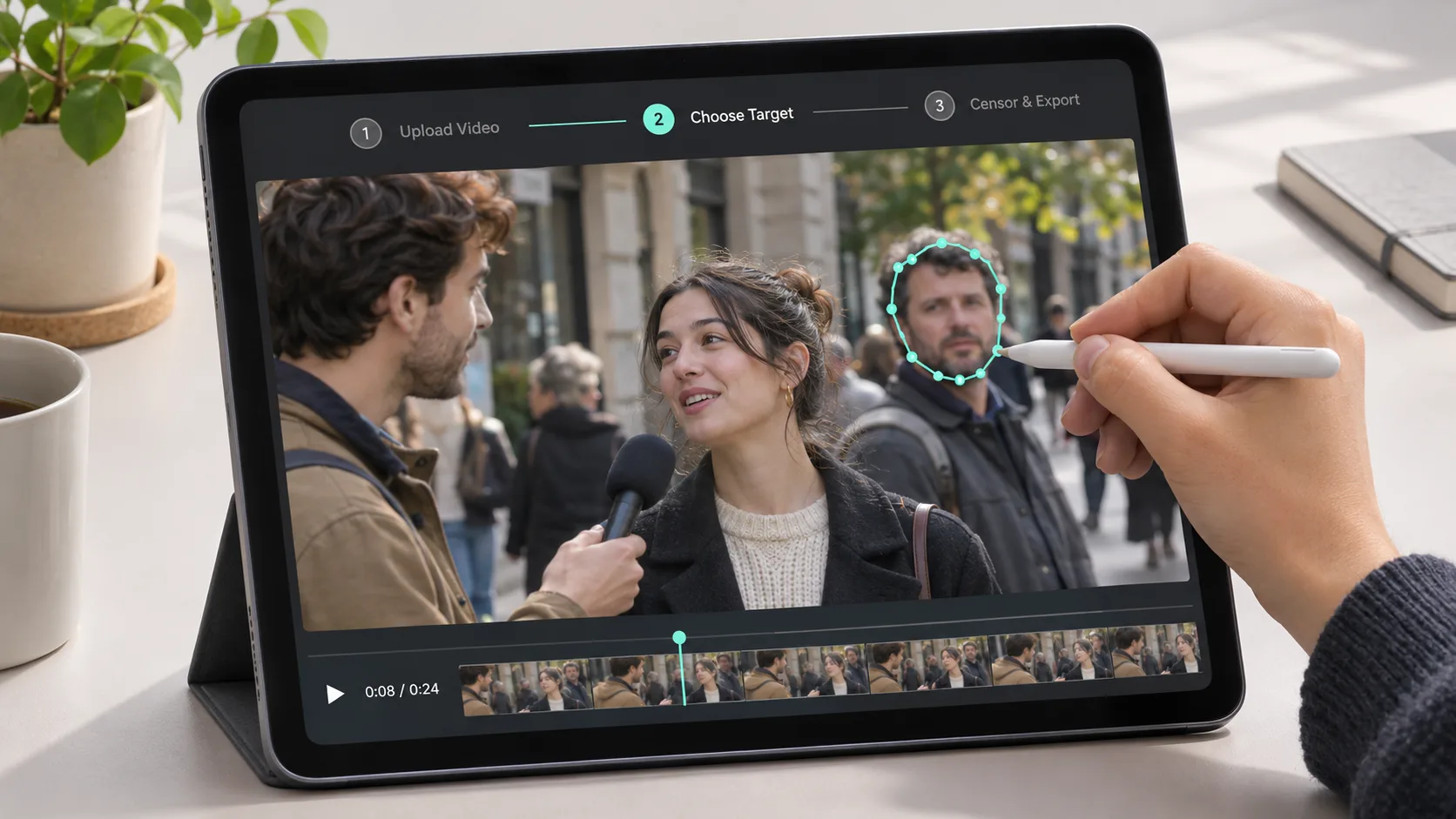
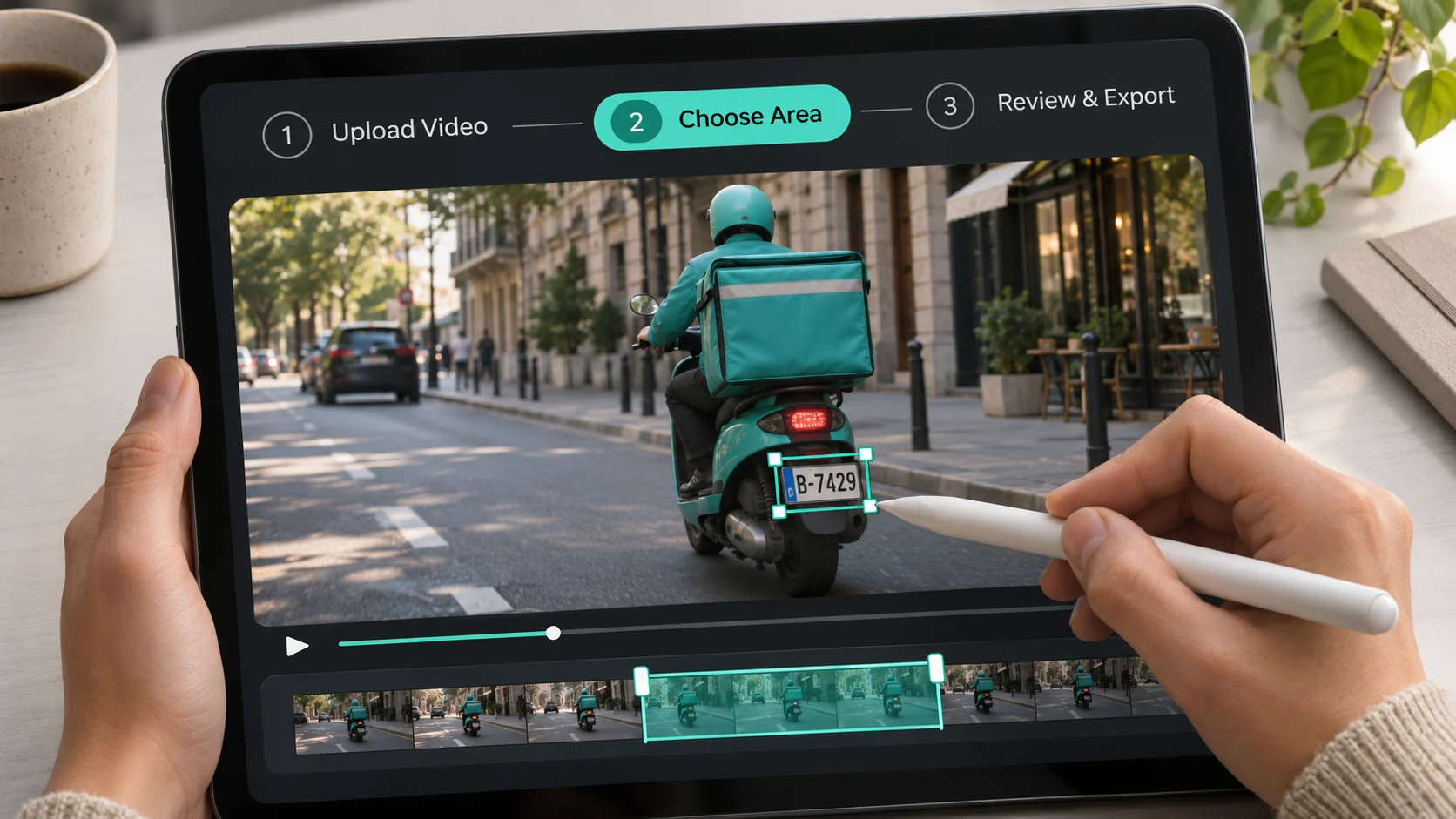
  2. Choose a moving face, plate, screen, or object in Censor Video by Remove BG Video
    2

    Choose a Face, Plate, Screen, or Object

    Pick a preset or describe one target, then choose Blur, Pixelate, Mosaic, or Blackout.
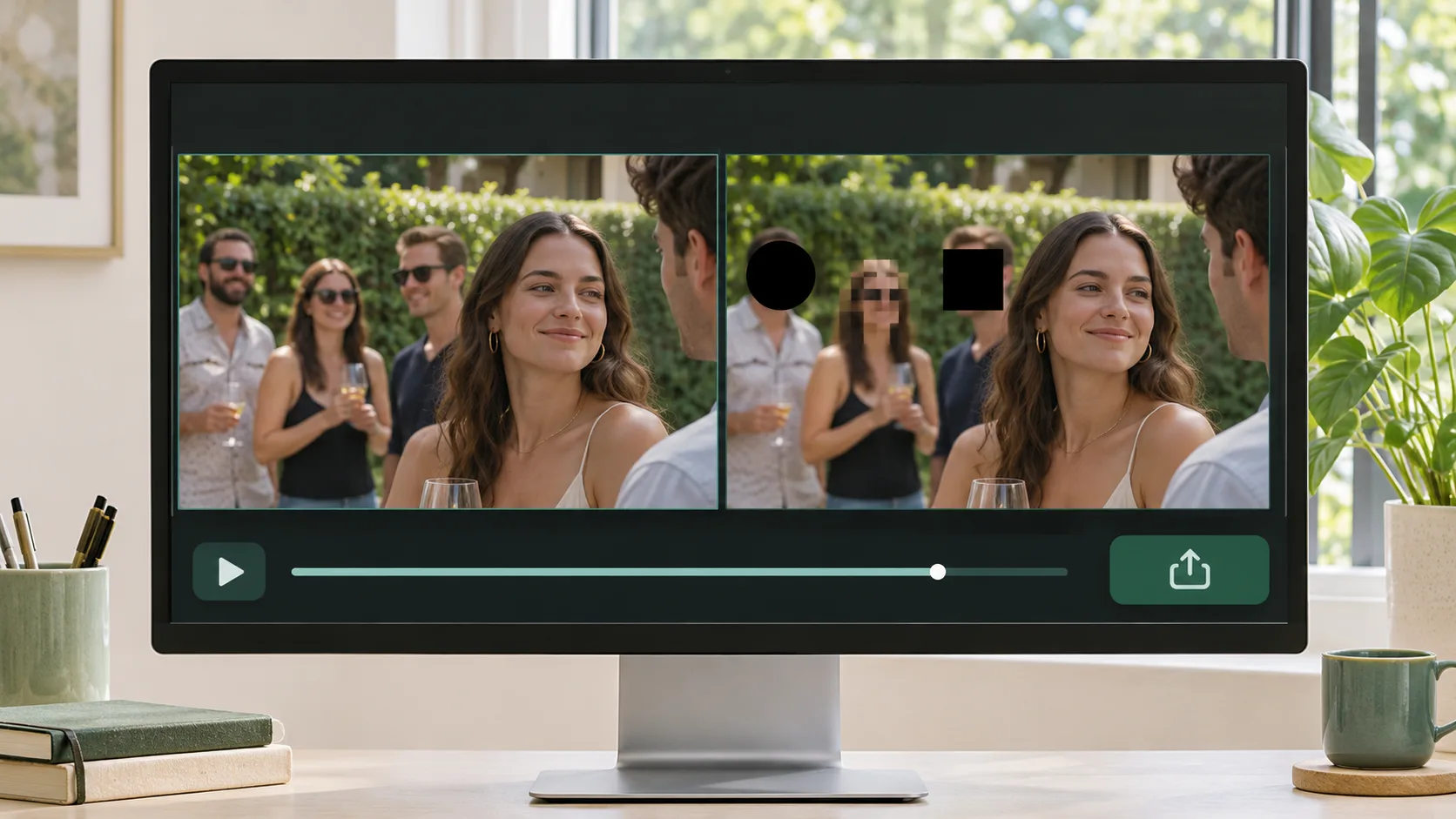
  3. Review a tracked Censor Video result before downloading from Remove BG Video
    3

    Review the Tracking and Download

    Play the censored result, adjust the effect, check difficult moments, and download a supported format.

Compare Blur and Blackout for Video Censorship

Use a censorship blur to soften a face or background detail. Switch to blackout when an identity, label, or screen must stay unreadable.

Censor Video Now
Made for censoring video

Track One Face or Object Across a Censored Video

Pick a preset or describe one target. The mask follows it through your selected clip, so you can review it before export.

Censor Video Now
Made for censoring video

Review Every Censored Video Effect Before Export

Switch censor styles and play the full preview, so you can catch missed frames before you publish.

Censor Video Now
Made for censoring video

Video Credit Packs

Buy credits once with no subscription or recurring charge. See the exact cost before processing, choose any clip range or the full video, and export a supported WebM, MOV, MP4, or GIF. Larger packs lower your cost per minute.

Pay-as-you-go credits never expire

Starter

$9.99
Best for a few short clips.

≈ 1.4–3.3 min · 1,200 credits

$3–$6.99/min · varies by model

Purchased credits never expire

Included in every pack

Original Fast 7 / Balanced-Fine 10 · Light/Human 6 · Pro 14 credits/second
Exact credit cost shown before processing
Process any clip range or the full video
Upload MP4, MOV, or WebM video
Export WebM, MOV, MP4, or GIF where supported
Four AI modes for general, fast, portrait, or prompt-based work
Reserved credits returned if processing fails
Popular

Creator

$29.99
For regular posts, demos, and tutorials.

≈ 7.1–16.7 min · 6,000 credits

$1.8–$4.2/min · varies by model

Purchased credits never expire

Included in every pack

Original Fast 7 / Balanced-Fine 10 · Light/Human 6 · Pro 14 credits/second
Exact credit cost shown before processing
Process any clip range or the full video
Upload MP4, MOV, or WebM video
Export WebM, MOV, MP4, or GIF where supported
Four AI modes for general, fast, portrait, or prompt-based work
Reserved credits returned if processing fails

Pro

$79.99
For campaigns, client work, and larger batches.

≈ 21.4–50 min · 18,000 credits

$1.6–$3.73/min · varies by model

Purchased credits never expire

Included in every pack

Original Fast 7 / Balanced-Fine 10 · Light/Human 6 · Pro 14 credits/second
Exact credit cost shown before processing
Process any clip range or the full video
Upload MP4, MOV, or WebM video
Export WebM, MOV, MP4, or GIF where supported
Four AI modes for general, fast, portrait, or prompt-based work
Reserved credits returned if processing fails

Tools

Explore More Tools

View all tools
Pixelate Video: Track and pixelate faces, plates, screens, labels, and moving objectsPixelate VideoTrack and pixelate faces, plates, screens, labels, and moving objectsBlur Part of Video: Track and blur one specific face, plate, text area, label, or objectBlur Part of VideoTrack and blur one specific face, plate, text area, label, or objectBlur Face in Video: Automatically track and blur every face or one specific personBlur Face in VideoAutomatically track and blur every face or one specific personAI Video Blur: Blur faces, license plates, backgrounds, and moving objectsAI Video BlurBlur faces, license plates, backgrounds, and moving objects
Straight answers

Censor Video Editor FAQ

Answers about face tracking, blackout, moving objects, clip ranges, audio, credits, downloads, and privacy.

Upload an MP4, MOV, or WebM, then choose a 5-second preview or a custom clip range. Select Faces, License plates, Screens & labels, or Any object, and pick Blur, Pixelate, Mosaic, or Blackout. Start processing, play the result, and check the tracking before you download the censored video.

Choose Faces to cover every visible face automatically, or choose Any object and describe one person to cover only them. The tracker follows the target through your clip. Before you export, check head turns, moments when something blocks the face, and times when people enter or leave the frame.

Use Blur when the surrounding scene can stay soft. Use Mosaic or Pixelate when you want viewers to see that something is censored. Use Blackout when the detail must be fully hidden. All four styles share the same tracked mask, so preview the hardest frames and pick the one that keeps private information unreadable.

This censor video app lets you set an exact start and end time before processing. Signed-in free accounts can move one 5-second preview window to any moment in the video. Longer custom ranges use credits, and the exact cost appears before a paid job starts.

Censor Video covers visible content only, such as faces, plates, screens, labels, and moving objects. It does not transcribe speech or bleep profanity automatically. To handle spoken words, use a dedicated audio editor, then combine that result with your visual censor export.

Open Censor Video in a modern iPhone browser to work with compatible MP4, MOV, or WebM files without installing an app. Upload, processing, preview, and export support still depend on your browser version, video codec, file size, connection quality, and available device memory.

You can test it for free. A signed-in account gets one processed preview of up to 5 seconds. Full processing and downloads use credits at 14 credits per processed second. The exact cost appears before a paid job starts, and failed paid jobs return the reserved credits.

Choosing a file only creates a preview in your browser. When processing starts, the selected clip is uploaded to our cloud storage and sent to FAL, our AI processing provider. We do not promise a fixed deletion period, so ask support to delete your media. Removing a My Creations entry does not guarantee the stored file is deleted.

Censor Private Details Before You Publish

Upload a clip, choose the moving target, try four censor effects, and see the exact credit cost before you export.

Censor Video Now